
Use CRON and CLI commands to automate tasks and improve performance in your WordPress website. Automatically clear your site cache, run WordPress scheduled tasks so you can disable the heartbeat, and learn how to manage CRON email notifications.
Last updated: 9 Oct 2025
Reading time: 5 minutes
Automating manual tasks in your WordPress website can save significant time and effort, while providing peace of mind that things are running as they should. Many plugins are available to help with automation, but at the cost of running on the WP CRON system, which may cause additional strain on your hosting resources (since WordPress runs these automated tasks when visitors are viewing your site).
To streamline automation on your site, you can use CRON to automatically run commands at scheduled intervals or specific times. You can also run CLI (Command Line Interface) commands with CRON, which can be really helpful in addressing scheduling pain points.
This guide walks you through the steps to set up a CRON job on SiteGround that runs a CLI command, making your WordPress maintenance tasks more efficient through automation.
Getting started
- Log into your SiteGround account.
- Click on Websites in the navigation, and select Site Tools for your site.
- In the left navigation, select Devs and Cron Jobs.
Purge SiteGround Optimizer cache
SiteGround Optimizer, especially on WooCommerce websites, can create a headache by storing too much cached data (sometimes many gigabytes), which can lead to headaches and downtime.
Even when configured to only cache content for 12 hours, it can still suffer with what seems like a runaway caching job. On larger websites, we configure automated cache clearing with CRON and WP-CLI with this command to manually purge the cache every day at 5am:
0 5 * * * wp --path=/home/customer/www/yourdomain.com/public_html sg purge
After completion, you should receive an email from the CRON daemon, similar to the screenshot below:
To test that it is working correctly, change the interval to */1 * * * *, which will run the command once every minute. When you’ve received a success email, you can change it to the desired interval.
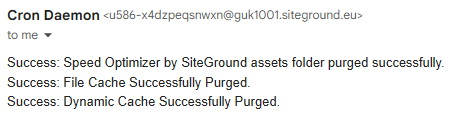
If the email you received indicates an error, start by double-checking that the path is correct.
View all available WP-CLI commands for SiteGround Optimizer.
Manually run WooCommerce (and WordPress) scheduled tasks
WordPress performs its scheduled tasks when customers visit your website. This is done through the WordPress Heartbeat API. This is fine for websites that do not get a lot of traffic, but if you have many visitors, this can severely impact performance by chewing on your server’s resources.
Firstly, disable WordPress heartbeat in SiteGround Optimizer (Speed Optimizer > Environment > WordPress Heartbeat Optimization).
Then, configure CRON to do this for you on a schedule that best suits your needs. This is a great way to improve performance by reducing the number of connections users make to your website:
*/5 * * * * cd /home/customer/www/yourdomain.com/public_html; wp cron event run --due-now
This manually runs WordPress scheduler tasks every 5 minutes, which is great for WooCommerce websites. For sites that do not have accounts or e-commerce, you can relax this schedule to once per hour (0 * * * *).
Manage CRON email notifications in SiteGround
- Log into your SiteGround account.
- Click on Websites in the navigation, and select Site Tools for your site.
- In the left navigation, select Devs and Cron Jobs.
- Select MANAGE NOTIFICATION EMAILS on the page.
- Add or delete emails addresses.
If you want to disable email notifications on some CRON jobs and keep it active for others, start by adding the email addresses that should receive notifications in MANAGE NOTIFICATION EMAILS.
To enable email notifications on a CRON job, remove custom output directives:
*/5 * * * * cd /home/customer/www/yourdomain.com/public_html; wp cron event run --due-now
To disable email notifications on individual CRON jobs, add >/dev/null 2>&1 to the end of your script:
*/5 * * * * cd /home/customer/www/yourdomain.com/public_html; wp cron event run --due-now >/dev/null 2>&1
To output notifications to a log file, change >/dev/null 2>&1 to the desired log location:
*/5 * * * * cd /home/customer/www/yourdomain.com/public_html; wp cron event run --due-now >/home/customer/www/yourdomain.com/logs/my_cron.log 2>&1
The CRON tools at SiteGround is awesome, and although this article only touches on a couple of examples, I hope it acts as a springboard to get you started with automating your manual processes.
About the Author: Stephan

![Cloudflare [email protected] issue in Avada](https://bigsalami.co.uk/wp-content/uploads/2026/08/banner-avada-cloudflare-email-obfuscation.jpg)

